English
Connect a Google Sheet
Connect your store once, from Settings > Integrations, and your products, stock and prices stay in sync with the marketplace without any work on your side: you keep selling from your store, and the marketplace follows.
With Google Sheets, the spreadsheet is your store.
What syncs
- ✅ Products: the
Productstab, read every 15 minutes - ✅ Orders: written to the
Orderstab as they are placed - ✅ Tracking: the
Trackingtab, read every hour - ❌ Cancellations and refunds
Connect
- Make a copy of the sample Google Sheet: it has the three tabs with their columns
- Click
Shareand invitegoogle-sheet-integration@garnet-marketplace.iam.gserviceaccount.comas Editor - In
Settings > Integrations, pickGoogle Sheets, paste the sheet's URL and save
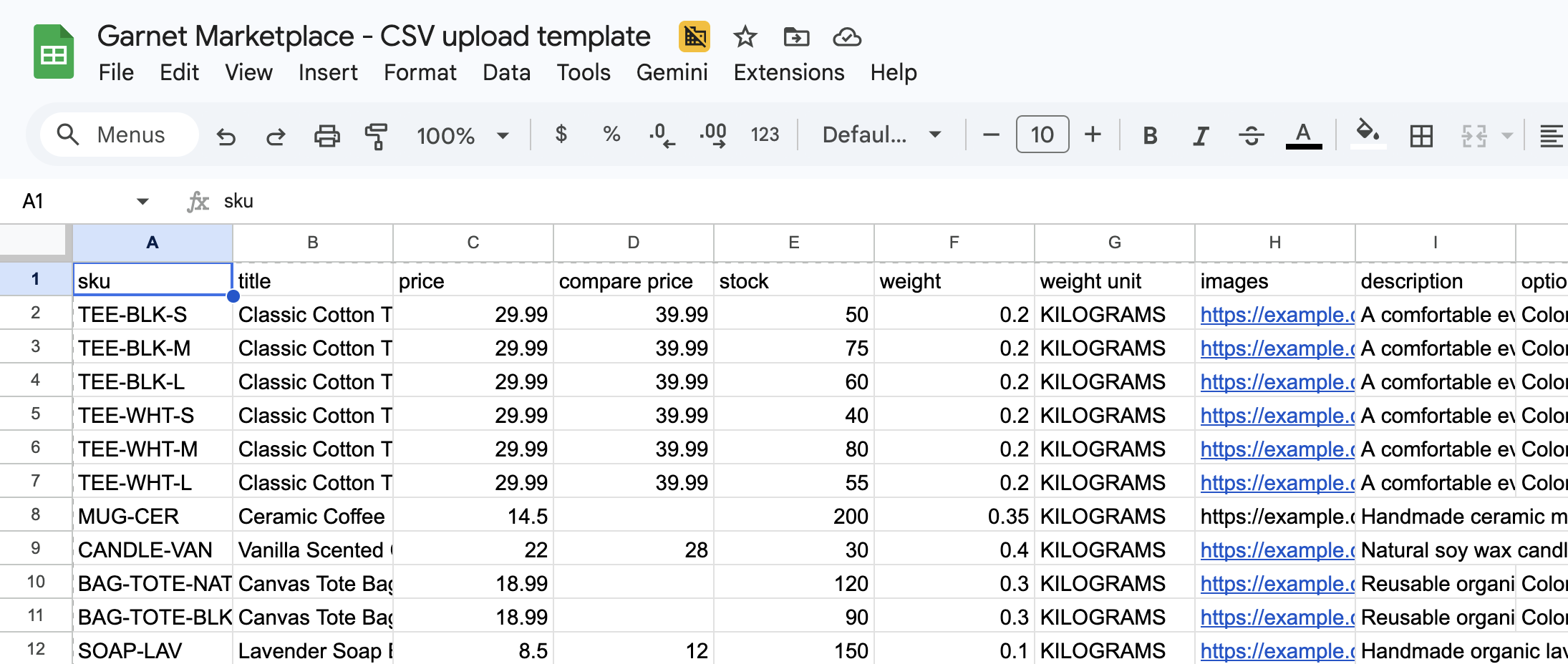
The three tabs
- Products: one row per variant, with
sku,titleandpricerequired;compare price,stock(empty orUntrackedfor untracked stock),weight (kg),images(URLs),descriptionand up to threeoption N name/option N valuepairs. The SKU of a product's first row identifies it: edit the row to update the product, remove it to archive the product. - Orders: filled by the marketplace, one row per item, with the customer's shipping address. Do not edit it.
- Tracking: one row per order, written by the marketplace. Fill in
tracking numberandtracking company(andtracking url): the order is fulfilled within the hour, and the customer receives the tracking.
If it does not work
- A product is not imported: its first row has no SKU, or a required column is empty; a change shows within 15 minutes.
- The sheet is refused: the marketplace's address is not an Editor of the sheet, or the URL is not the sheet's.
- The tracking is not sent: the
order idandorder namemust match the Orders tab; a tracking cannot be changed once sent.
Ask your marketplace
Whether it imports all your products or picks them.