English
Add a product
Go to Products, click Add product, fill in the form and click Save. The product is then Pending until your marketplace approves it.
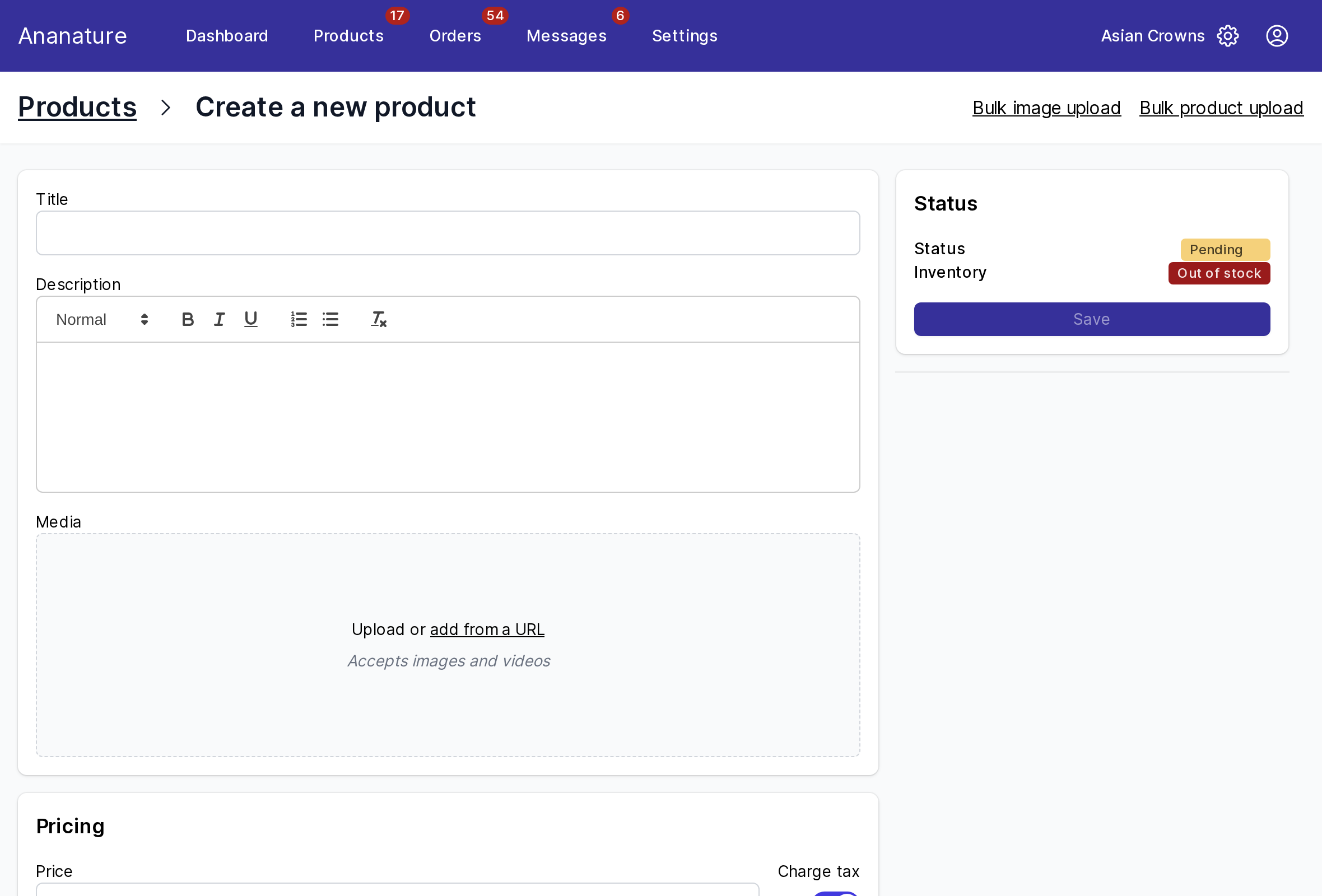
The form
- Title and Description. The description can hold bold, lists and headings: select text to format it.
- Media: drop your photos and videos, or
add from a URL. The first image is the one customers see in lists. - Pricing: the price, and when shown, a compare-at price to display a sale, and whether tax is charged.
- Inventory: the quantity in stock, and when shown, the SKU and barcode. At 0 the product shows
Out of stockand cannot be bought. - Variants: when your marketplace allows them, up to three options such as size and colour. Each variant has its own price, quantity and, when needed, weight; click its row for its SKU, barcode or image.
- The marketplace's fields: the sections below are what your marketplace asks for its listings, such as materials, dimensions or care instructions. Required ones block
Saveuntil filled. - Shipping: the weight, and when asked, the dimensions and whether the product can be picked up.
After Save
The Status card shows where the product stands: Pending, then Live once approved, with See live to open it on the marketplace. You can edit a live product at any time; the change shows within minutes. Duplicate at the top copies the product to list a similar one.
Many products at once
Products > Add product > Bulk product upload imports a CSV: download the template, fill one line per product, upload it, match its columns to the fields, and check the result before importing. Bulk image upload then matches photos to products by their file name.
If it does not work
Savestays grey: a required field is empty, or an image is still uploading.- The product is saved but not on the marketplace: see Why is my product not on the marketplace?.
Ask your marketplace
What it accepts for sale, its photo and title standards, how long approval takes.